IPTV Active Sessions: Audit & Clear Unauthorized Access
17 September 2026 · 9 min read
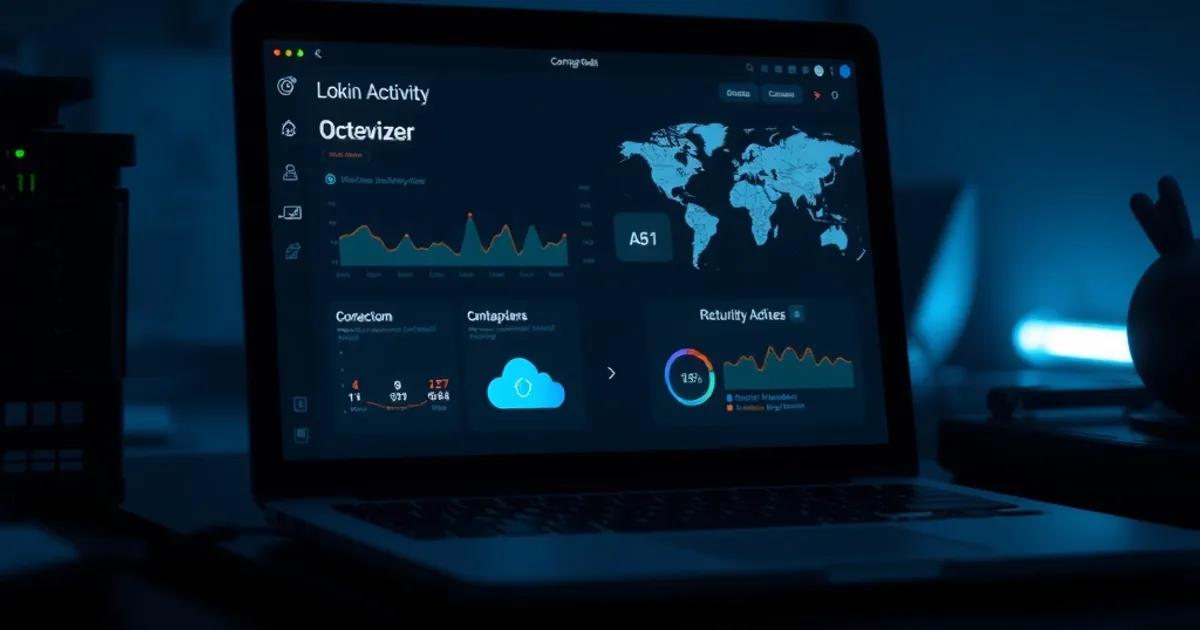
September 2026 is peak ISP blocking season in the UK. Sky, BT and Virgin Media are issuing real-time court-ordered IP blocks on a weekly cadence, which pushes households to test multiple providers in parallel and, inevitably, to share login credentials across more people than the account was ever set up for. At the same time, providers are tightening account-sharing enforcement, which means more "maximum connections reached" errors and more accounts getting suspended for what looks like abnormal activity.
Most guides on IPTV troubleshooting stop at buffering fixes and device setup. Almost none of them explain how to actually look at who is logged into your account right now, how to read a login history the way a provider's support team would, or how to tell the difference between a genuine security problem and a stale session that never logged out properly. That gap is exactly what causes panic bans: a user sees "maximum connections reached," assumes they've been hacked or that the provider is punishing them, and either floods support with tickets or abandons a perfectly good subscription.
This guide walks through the audit process step by step: how session tracking actually works under the hood, how to check and read it on your own account, how to clear a session that shouldn't be there, and a short pre-match routine so you're not troubleshooting logins thirty seconds before kickoff.
Why IPTV Active Sessions Matter in 2026
An "active session" is simply a record that a specific device, on a specific connection, is currently authenticated and pulling a stream from your account. It sounds mundane, but in the current environment it's become the single most useful diagnostic screen a subscriber has. Providers use session counts to enforce plan limits, and a spike in unfamiliar sessions is usually the first visible sign that something has gone wrong — either technically or with who has access to your login.
The stakes are higher than they were a year ago for two reasons happening at once. First, the wave of ISP-level blocking means more people are experimenting with backup providers, trial accounts, and shared family logins to keep watching through disruptions — see our guide on setting up family sharing the safe way (/blog/family-iptv-sharing-setup-safe-uk-2026). Second, providers have visibly tightened their own account-sharing detection, which means a login pattern that would have been ignored eighteen months ago can now trigger an automatic suspension.
Understanding your own session history turns a scary, opaque error message into a solvable problem. It also gives you an early warning system: if your credentials ever leak — through a phishing page, a reused password, or a shady "cheap IPTV" reseller — the first evidence usually shows up as a session from a device or location you don't recognise, not as an obvious hack alert.
Not sure how many devices are actually logged into your account right now?
How IPTV Providers Track Simultaneous Streams
IPTV services don't all track sessions the same way, and knowing which method your provider uses tells you what an audit will actually show you. Most Xtream Codes-style panels track by concurrent connection count tied to the username/password pair: the server simply counts how many streams are open under that login at once, regardless of device.
Others layer in device or MAC-address binding, where the app registers a device fingerprint on first login and treats a new fingerprint as a new slot, even if an old session already dropped. This is why a session can appear "stuck active" after you've closed the app — the server hasn't received a clean logout signal, just a dropped connection, and it may take a timeout window (often 5–30 minutes) before that slot frees up.
A smaller number of providers, particularly ones built on more modern token-based authentication, issue a short-lived access token per login that must be refreshed periodically. These systems tend to show the clearest session lists because each token maps to a specific IP and device at the time it was issued, rather than to a vague connection count.
None of this is a reason to trust a provider blindly — plenty of the cheapest resellers cut corners on exactly this kind of session hygiene, which is one of several signs worth checking before you commit; our breakdown of provider red flags covers it in more detail (/blog/iptv-provider-red-flags-scams-uk-2026).
How to Check Active Sessions on Your IPTV Provider Portal
The exact screen varies, but the audit process is the same three-step routine across almost every provider type. Step one: log into the web member portal (not the streaming app) using a browser, since session/device management is almost always a portal-only feature, not something exposed inside the player app itself.
Step two: look for a section labelled something like "My Devices," "Active Connections," "Sessions," or "Login History" — usually under account settings or a dashboard tab. On Xtream Codes-based panels this is frequently shown as a simple table of connected IPs with timestamps. On apps with their own account system, it's more often a device list with names like "Android TV," "iPhone," or a browser identifier.
Step three: cross-reference what you see against what you actually own and use. Count the devices your household genuinely runs — TV box, phone, a second TV, maybe one shared login for a family member — and treat anything beyond that count as something to investigate, not something to assume is fine.
If you're still comparing providers and haven't committed yet, testing this screen during a trial period is one of the most practical ways to judge how transparent a provider actually is — see how to get a trial without a credit card first (/blog/iptv-trial-without-credit-card-uk-2026).
Reading Login Logs: Spotting Unauthorized Access & Unfamiliar Devices/IPs
A login log is more useful than a live session list because it shows history, not just a snapshot. The three fields worth reading carefully are IP address, timestamp, and device identifier — and the skill is in the pattern, not any single entry.
A rotating home IP address is normal; most UK ISPs assign dynamic IPs that change every reconnect or every few days, so seeing two or three different IPs from the same city over a week is not itself suspicious. What is worth flagging is an IP that geolocates to a different country or a different UK region entirely, especially clustered around times you know you weren't streaming.
Device identifiers are the second signal. A login log showing "Smart TV," "Smart TV," "Android Box" for a household that owns one TV and one box is consistent. A sudden fourth or fifth distinct device name — especially generic labels like "Unknown Device" or a browser user-agent you don't recognise — is the clearest sign credentials have been shared or leaked beyond your control.
Timestamp clustering matters too: overlapping sessions during hours you know the household wasn't watching (say, 3am on a Tuesday) are a stronger signal than an odd IP alone, since IP data can be noisy but simultaneous unexplained activity usually isn't.
The Maximum Connections Error Explained (And When It's a Real Threat vs a Bug)
"Maximum connections reached" is the single most misunderstood error in IPTV. It simply means the server thinks every connection slot on your plan is currently occupied — it does not, by itself, mean you've been hacked, banned, or flagged.
The most common cause is a stale session: you closed the app on a phone or a box without a clean logout, the connection dropped due to a network blip, and the server hasn't yet expired that slot. This resolves itself after the provider's timeout window, or immediately once you find and manually clear it in the sessions screen.
The second most common cause is a genuinely oversubscribed login — more real, concurrent devices than the plan allows, whether that's your own household streaming on more screens than usual, or unauthorized sharing. The way to tell the two apart is exactly the audit from the previous section: if the session list shows devices and IPs you recognise, it's a stale-slot bug; if it shows devices you don't, it's a capacity or security problem.
Treat repeated maximum-connections errors as a diagnostic prompt, not a crisis — check the session list first, every time, before contacting support or assuming the worst.
Clear & Revoke: Safely Removing Compromised Sessions Without Losing Your Stream
Once you've identified a session that shouldn't be there, most portals offer a per-device "disconnect" or "revoke" action next to that entry in the session list. Use that targeted option rather than a blanket "log out everywhere" control whenever one is available — it clears the unwanted connection without also kicking your own active stream mid-match.
If the panel only offers a full reset, the safer sequence is: pause your own stream first, clear all sessions, then log back in only on the devices you actually use, one at a time, so the session list stays clean and easy to read going forward.
If you find unfamiliar devices, revoking the session is step one, not step two — change your password immediately afterward, since a revoked session with an unchanged password can simply reconnect. Use a password you haven't reused anywhere else; credential reuse from an unrelated breach is one of the most common ways IPTV logins end up shared without the account holder doing anything wrong.
For any provider where this process feels opaque, hidden, or unavailable at all, treat that as a data point on its own — a legitimate provider gives you visibility and control over your own sessions; one that doesn't is worth weighing against the criteria in our guide to choosing a legal, trustworthy provider (/blog/choose-legal-iptv-provider-uk-2026-avoid-scams).
Detecting Credential Sharing Before Your Provider Detects It (Warning Signs)
Providers cracking down on sharing generally look for the same handful of signals you can check yourself first. Simultaneous streams from IP addresses in different towns or countries is the strongest one — a household doesn't normally watch from Manchester and Marseille at the same minute.
A second signal is session count creeping upward over weeks without any change in your own household setup — a slow drift from two devices to five is a classic sign a login has been passed along informally, even among family or friends who don't consider it "sharing" in a harmful sense.
A third is channel or content access patterns that don't match your own viewing — if your account history shows streams running during hours nobody in your household was home, that's worth investigating even if the device name looks generic rather than obviously foreign.
Catching these patterns yourself, before the provider's automated system does, lets you fix the access quietly — revoke, repassword, done — instead of dealing with an account suspension and a support queue during a week when you actually want to be watching.
Stop guessing who has access — see plans built around clean, single-household logins.
Pre-Match Account Health Check: Audit Protocol 30 Minutes Before Kickoff
Big-match nights are exactly when a stale session or a maximum-connections error costs you the most, so it's worth running a short, deliberate check well before kickoff rather than discovering a problem live. Thirty minutes is enough time to fix what you find without rushing.
The routine: log into the portal, open the session list, close any app instances left running on devices you're not using tonight, and confirm the device count matches what you plan to actually watch on. This is a natural companion to a broader pre-match reliability check — our match-day trial checklist covers stream stability, EPG accuracy, and backup options in the same window (/blog/test-iptv-trial-match-day-checklist).
If you see anything unfamiliar during this check, resolve it now — revoke, repassword if needed — rather than an hour before kickoff when support queues are longest and providers are busiest. A five-minute audit habit before big fixtures is the cheapest insurance against losing your stream at kickoff for a reason that has nothing to do with your internet connection.
Frequently asked questions
How many devices can be logged into one IPTV account at the same time?
This depends entirely on your specific plan's connection limit, which varies by provider and package — check your plan details or ask support directly rather than assuming a number, since exceeding it is what triggers the "maximum connections reached" error.
Does checking my active sessions risk getting my account flagged?
No. Viewing your own session list and login history is a normal account-management action, not a suspicious one. It's the equivalent of checking active sessions on any online account and doesn't affect your standing with the provider.
I don't recognise a device in my session list — what should I do first?
Revoke that specific session immediately, then change your account password to something you haven't used elsewhere. Revoking without changing the password only removes the connection temporarily, since the same credentials can simply reconnect.
Why does my session list still show a device I already turned off?
Most IPTV systems rely on a timeout window rather than an instant logout signal when an app closes or a connection drops, so a session can appear active for several minutes after the device is actually off. If it persists well beyond that, disconnect it manually from the portal.
Can I tell the difference between my own household's IP changing and an unauthorized login?
Yes — a dynamic home IP typically stays within the same city or region across reconnects. An IP that geolocates to a different country, or that appears alongside a device name you don't recognise, is the stronger signal of unauthorized access rather than a normal ISP reassignment.
Should I audit sessions on a schedule, or only when something goes wrong?
Both — a quick check before major fixtures catches stale sessions before they cause errors, while an occasional broader review of your full login history is the best way to catch slow credential drift that wouldn't show up in a single snapshot.
Read next: the pricing page, the setup tutorial or the FAQ.